Friday, July 17, 2015

What is Hive, What is Hive Database, What is Hive Table?

When I go through Apache Software Foundation, most attractive and most relevant projects I see for me are Hadoop and Hive. Hadoop is an open source platform that offers highly optimized distributed processing and distributed storage that can be configured with inexpensive infrastructure. Scalability is one of the key advantages related to Hadoop, it can be started with few number of servers and can be scaled out to thousands without any issue.

For more info on Hadoop:


What is Hive now? Hive is a supporting project that was originally developed by Facebook, as an abstraction layer on top of MapReduce model. In order to understand Hive, MapReduce has to be understood.

MapReduce is a solution for scaling data processing which is one of main components of Hadoop. This means that it helps to do parallel data processing using multiple machines in Hadoop (or HDFS). It is considered as a framework as it is used for writing programs for distributed data processing. MapReduce programs requires two separate and distinct methods; Map and Reduce (optionally). Function related to these can be written using languages like Java, Perl and Python.

When it comes to a complex MapReduce implementation, many who do data analysis including database engineers find difficultly because languages to be used are not much familiar for them. Not only that there are some other constraints like time it takes time for implementing, complexities, and less re-usability. This made Facebook team to implement Hive.

Hive is data warehouse infrastructure built on top of Hadoop. It provides SQL-Like language called HiveQL allowing us to query data files in HDFS for processing data using familiar SQL-Like techniques. This converts our SQL commands to MapReduce jobs, hence we do not need to worry about MapReduce implementation.

What is Hive Database? Even though it appears as a relational database we are familiar with, it is not. It is just a name that can be used for grouping set of tables created, or it can be considered as namespace (like we used to group our classes, methods in .Net). When a hive database is created, it creates a folder with the name given suffixing .db. If the location is not specified, it will be created in /hive/warehouse folder, else folder will created in the given location in HDFS. For example, following code will create a folder called sales.db inside the /hive/wearehouse folder.

CREATE DATABASE sales;


What is Hive Table? It uses similar concept. When we create a table with relational database management systems, it creates a container for us with constraints we added like columns, data types, rules, and allows us to add records matching with constraints added. But Hive table does not create a container for us like that, it creates a schema on top of a data file we have placed in HDFS, or data files we are supposed to place as it uses schema-on-read not schema-on-write (read this What is Schema-on-write and Schema-on-Read?).

Hive supports two types of tables: Hive Managed Table and External Table. Hive Managed Tables creates a sub folder in side the database folder with a schema. And later we can place files into the folder, this is how record-insert process works though Hive does not offer interactive queries like INSERT, UPDATE, DELETE. Managed tables are maintained by Hive, dropping the table will drop files placed too.

External Table helps us to create a schema for reading data in files. Location clause is required when an external non-partitioned table is created pointing the folder that holds data files.

Here is an example for a managed table

USE sales;
CREATE TABLE customer
(
    customerid int
    , name string
)
ROW FORMAT DELIMITED
FIELDS TERMINATED BY ‘|’
LINES TERMINATED BY ‘\n’
STORED AS TEXTFILE; 

Here is an example for an external table

CREATE EXTERNAL TABLE customer
(
    customerid int
    , name string
)
ROW FORMAT DELIMITED
FIELDS TERMINATED BY ‘|’
LINES TERMINATED BY ‘\n’
STORED AS TEXTFILE
LOCATION '/xyz/abc/lmn'; 


Once the table is created, SQL-Like queries can be used for accessing data in files.

Let's see more on these with samples in future posts.

Wednesday, July 15, 2015

MDX and Reporting Services: How to remove duplicates from a parameter?

What if you get duplicate values from a dimension that is going to be used for loading a Reporting Services parameter? Generally, you do not get duplicates from a dimension because we do not configure the dimension like that. For an example, we do not expect duplicate names from Product dimension. But there can be an exception that shows duplicate names but unique keys, something like below;

Id Name ...
1 Product A ...
2 Product B ...
3 Product A ...
4 Product C ...

If Id of this has been used as the key and name has been used as the name of the key, even though we write a MDX query like below, we still get duplicates as they have unique keys.

SELECT 
  {  } ON COLUMNS, 
  { Distinct([Product].[Product].MEMBERS) } ON ROWS 
FROM [Cube];

Best way is, fix this in database level without taking it to reporting level. But if we cannot do anything at database level (assume that no permission, have to use as it is) and still should not show duplicates with the parameter, what is the best way?

I have solved this in two ways. One is, execute the MDX from the database engine, connecting with OLAP database using a linked server. In this case, TSQL SELECT statement will be used and source for the parameter will be database engine, not OLAP database.

SELECT
 DISTINCT [Measures.ProductName]
FROM OpenQuery(LinkedServerForOLAP,
 'WITH 
 MEMBER [Measures.ProductName] AS [Product].[Product].CurrentMember.Name
 SELECT 
    { [Measures.ProductName] } ON COLUMNS, 
    { Distinct([Product].[Product].MEMBERS) } ON ROWS 
  FROM [Cube]')

Other method is, write VB.Net code inside the report for removing duplicates. This requires a hidden parameter that holds data coming from the OLAP database and another new parameter for showing values. New parameter has to be loaded from a function written in the Code segment that accesses the hidden parameter for getting values, programatically removes duplicates and returns distinct values.

Here is the second way;

First create a hidden parameter. Make sure it is set as hidden.


Then set Available Values and Default Values with the data set created based on OLAP database.


First part is done. Then implement the following code in Code segment.

Function GetDistinctLabels(parameter As Parameter) As String()


 Dim labels As Object() = parameter.Label
 System.Array.Sort(labels)

  Dim x As Integer = 0

 For i As Integer = 0 to labels.Length - 1

  If i > 0 And labels(i).Equals(labels(i - 1)) Then
   
   Continue For
  End If
  labels(x) = labels(i)
  x += 1
 Next

  Dim distinctlabels As [String]() = New [String](x - 1) {}
 System.Array.Copy(labels, 0, distinctlabels, 0, x)

  Return distinctlabels

End Function


After that, load the main parameter that is used for showing values as below;

Set the Available Values using Specify values and call the function written for loading distinct values passing parameter name. Do it for both Label and Value.


Set Default Values using same technique if required.


That is all. I have used both methods and both worked fine. However if keys of these labels have to be passed to another dataset loading more data, additional work is required for maintaining keys of the parameter.

Monday, July 13, 2015

MDX Top function

If we need get Top n records from a relational database table, we simply use SELECT TOP (n).... But how do you do the same with Multi-dimensional database like Analysis Services databases? MDX is the language we used for querying Analysis Services databases, or Cubes. MDX function called TopCount  is the known function for similar operation but it is believed that it has to be used with a numeric expression and the result of TopCount is based on values of the numeric expression used.

In a way, it is true. But what if we need to get a set of dimension members using Top functionality without using a numeric expression. To elaborate, if I want to get 5 products from Products table, I can write something like below using TSQL;

USE AdventureWorks2014;
GO

SELECT TOP (5) Name
FROM Production.Product;

If I want to do the same with Product Dimension in a cube, how can it be done? Can I use TopCount without using a numeric expression? Yes, it is possible. The numeric expression for TopCount function is optional, hence it works like below;

SELECT 
 {} ON 0
 , {TopCount([Product].[Product Categories].[Product].Members, 3)
  } ON 1
FROM [Adventure Works];


In addition to that, Head  function can be used too.

SELECT 
 {} ON 0
 , {Head([Product].[Product Categories].[Product].Members, 3)
  } ON 1
FROM [Adventure Works];


Sunday, July 12, 2015

SQL Server Brain Basher of the Week #020 - Lock Escalation

If you have read my previous post "SQL Server: Locking cost, concurrency cost and concurrency issues [Discussion on Transactions - III]", then you have seen lock escalation. Lock escalation is a process that converts fine-grain-locks (row level, page level locks) to fever coarse-grain-locks (table level locks). This increases concurrency cost and reduces the locking cost. This week Brain Basher is based on this, and it is;

What makes Lock Escalation triggered?

Generally, it gets triggered when a single statement obtained at least 5000 locks. If it is not successful, then it attempts the same for every 1,250 new locks. This happens only when Lock Escalation is not disabled on the table by using ALTER TABLE SET LOCK_ESCALATION option. If you need a sample code to see this, please visit above link.

As per MSDN;

Lock escalation is triggered when lock escalation is not disabled on the table by using the ALTER TABLE SET LOCK_ESCALATION option, and when either of the following conditions exists:
  • A single Transact-SQL statement acquires at least 5,000 locks on a single nonpartitioned table or index.
  • A single Transact-SQL statement acquires at least 5,000 locks on a single partition of a partitioned table and the ALTER TABLE SET LOCK_ESCALATION option is set to AUTO.
  • The number of locks in an instance of the Database Engine exceeds memory or configuration thresholds.


SQL Server: Locking cost, concurrency cost and concurrency issues [Discussion on Transactions - III]

Continuing notes related to the discussion....

Another area that was discussed is, how SQL Server places locks for transactions and whether the cost of transaction goes up based on the locking mode used. What exactly happens when we query, when we execute an action query? By default, SQL Server decides what type of locking mode should be used for our query, whether it should be shared or exclusive, and the type of resources should be locked: RID, Pages, Tables, Database, etc.

If SQL Server has to maintain many number of locks, the maintenance cost goes up and it might affect to the performance too. However this might increases the concurrency. For example, assume that we update 6,000 records in a table. Considering many factors, SQL Server might first obtain fine-grained-locks (row or page level locks) only for records that are being updated. This makes sure that other records in the table are not locked and can be accessed by other users, increasing the concurrency, reducing the concurrency cost. However, the cost of maintaining 6,000 locks may be very high. If SQL Server detects that the cost is higher than expected, it tries to escalate the fine-grained-locks to more coarse-grained-locks (table level locks), decreasing the the locking cost and increasing the concurrency cost (more and more users will be blocked). Below diagram shows this;


This code shows how locks are obtained for a transaction that updates 5,000 records;

-- starting a transaction
BEGIN TRAN;

-- update 4000 records
UPDATE TOP (4000) InternetSalesTest
 SET DiscountAmount = SalesAmount * (5/100)
WHERE MONTH(OrderDate) = 5;

-- check locks
sp_lock;


Since only records that are being updated are locked, users can access other records without any issue. This increases the concurrency reducing the concurrency cost. However this increases locking cost.

When 6,000 records are getting updated;

-- rollback the previous transaction
ROLLBACK TRAN;

-- start a new transaction
BEGIN TRAN;

-- update 6,000 records
UPDATE TOP (6000) InternetSalesTest
 SET DiscountAmount = SalesAmount * (5/100)
WHERE MONTH(OrderDate) = 5;

-- check locks
sp_lock;


Since the entire table is locked now, it decreases concurrency increasing concurrency cost. No other users can access the table though locking cost is low now.

This is changeable however it is always recommended not to change the default behavior unless you know what you exactly do.

We discussed about concurrency issues too. There are four well known issues related to concurrency which can be addressed with changing locking mechanism by applying Isolation Level. There are Dirty read, Lost updates, Inconsistency Analysis, and Phantom reads.

I have written an article on this in 2011, you can have a look on it at: http://www.sql-server-performance.com/2007/isolation-levels-2005/

Saturday, July 11, 2015

Hadoop cluster and how it stores a file when deploying

Hadoop is no longer a new word, everyone knows it and everyone knows why we need it. During my last two presentations, I explained Hadoop Cluster and how it stores a file when a file is placed. Here is the image I used for explaining Hadoop Cluster.


Hadoop cluster consists couple of components, including Master nodes and Slave nodes as main components. Master Nodes responsible for managing and coordinating services and tasks (Eg. using Name Node) and Slave Nodes responsible for storing and processing data providing resources like CPU and memory.

Generally, Hadoop is configured on rack-based servers. On top of each rack, network switch is configured for intra-rack communication and another network switch is configured for handling communication between rack switches and client that runs Hadoop client-related software.

Hadoop uses HDFS for holding files. It is responsible for breaking large files into smaller chunks (128MB - configurable), placing them in different slave nodes and replicating them for providing high availability. Here is a video that shows how a file is distributed in Hadoop Distributed File System;


Friday, July 10, 2015

Understanding SQL Server Recovery Process [Discussion on Transactions - II]

This is the continuation of the post I made: Understanding transaction properties with Microsoft SQL Server.

During the same discussion, we talked about how SQL Server handles incomplete transactions in the event of a power failure or system crash. In order to understand this, we need to understand a process called Recovery Process. This process takes place every time SQL Server is started or when a restore operation is performed.

Recovery Process makes sure that incomplete transactions are either rolled back or rolled forward. This is possible because necessary information is available in the log file even though data files are not updated with modifications performed by our transactions. When a modification is performed, log is updated with information such as values related to the modification, type of the change, page numbers, date and time of the beginning and end. SQL Server makes sure that the message that says “transaction is completed” is sent to the client only after relevant information is written to the log. Remember, physical log is immediately updated with our transactions but it does not update data pages in the disk (data files) immediately. It updates data pages loaded to the buffer and pages in the disk are updated by a process called Checkpoint.

Checkpoint writes updated data pages in the memory to data files. In addition to that, it updates the log file with information related to transactions that are in progress.

When Recovery Process runs, it checks for transactions that have updated the log but not updated the data file. If found, it redoes the transactions applying modifications recorded in the log to data files. This is called as redo phase of recovery.

If Recovery Process finds incomplete transactions in the log file, it checks for updated data pages in the data file related to the transaction and using information available in the log file, it undoes all modifications from the data file. This is called as undo phase of recovery.

This video shows how Recovery Process works with complete and incomplete transactions. It shows how transactions are started with the time line, how log is updated (with ) and how data files are updated (with ). And finally, it shows how Recovery Process works on all transactions and recover them either performing Redo or Undo.


Tuesday, July 7, 2015

Understanding transaction properties with Microsoft SQL Server [Discussion on Transactions - I]

I had a chance to discuss an old topic with few of my colleagues, it was on transactions and isolation levels. Although it is old, well known to experienced engineers, it is something new and something important to know for many. Therefore, thought to make some notes on the discussion, here is the first one.

What is a transaction? Simplest way to understand it is, consider multiple operations to be done as a single operation. In database management system world, it is a unit of work that will contain one or more operations on querying, modifying data and modifying definition of the data. With SQL Server, we implement explicit transactions using BEGIN TRAN, COMMIT TRAN and ROLLBACK TRAN. In addition to that, SQL Server supports implicit transaction and auto-commit transactions.

Transactions have four properties. Here are details we discussed on them aligning with SQL Server.

Atomicity: Transaction is considered as an atomic unit of work. As explained above, it includes one or more operations. However transaction completion is not just completing one operation, it should either complete all operations involved or none of them should be completed. SQL Server automatically rolls back transactions that have errors if it runs with auto-commit mode and we need to roll back if explicit or implicit transactions are used. If the system fails before the completion of the transaction, upon restart the service, SQL Server undoes all incomplete transactions during Recovery Process.

Consistency: This refers the state of the data (or database). When a transaction needs to be started on data, data needs to be in a consistence state in order to access. In SQL Server, if data is being modified, with default behavior, the state of the data is not consistence and transaction has to wait, unless different isolation level is used. SQL Server allows to start the transaction once data is consistence and transaction goes through all integrity rules set and completes bringing data into another consistence state.

Isolation: This refers controlling data access as transaction expects. Basically, if transaction expects to get exclusive access even for data reading, this property makes sure that data is in required consistency level for accessing. Once allowed, if other concurrent transactions require same data, access is allowed based on the way data is being accessed by the first transaction. SQL Server offers two methods for handling isolation: locking and versioning. Both locking and versioning are available in on-premises SQL Server installation and default is locking. Locking makes sure that transaction cannot read data if it is inconsistence. Versioning is bit different, if data is inconsistence, it allows to read the previous consistence state of data. This is the default for Azure SQL Databases. This can be controlled by implementing different isolation levels with transactions.

Durability: Once the transaction is committed, it is considered as durable even with a disaster. SQL Server uses write-ahead mechanism for handling this, it makes sure committed transactions are written to the transaction log before writing it to data files. If something happens before writing committed data to the data file, still data can be recovered using info recorded in the log file. Generally, at the restart of SQL Server service, it checks the transaction logs for rolling forward transactions that are written to log but data files and rolling back transaction that are incomplete.

Monday, July 6, 2015

SQL Server 2016 features: Polybase: SQL Server connector to Hadoop

** The latest article on this based on RC3 is available as SQL Server 2016 - Manipulating data in Azure Storage using PolyBase.

Polybase is not a new product to Microsoft SQL Server product suite but it is new to many of us or it is not a well known component to developers as it was limited to one edition. Microsoft started adding Big Data related components to Microsoft platform long time back and as a result of it, HDInsight (Hadoop in Azure) and Analytical Platform System (Parallel Data Warehouse) appliance were introduced. Poybase was part of APS and it was limited to APS edition. In a way, it acted as a bridge between Hadoop and relational databases, allowing us to query files (all structured, semi-structured and unstructured) in the Hadoop using familiar language: SQL.

Good news is, now Microsoft has included this functionality to other editions as part of Microsoft SQL Server 2016. It allows you to process data in files (obviously large files) using SQL as they were tables in the database when files are stored in Azure Blob Storage or Hadoop.

As you know, SQL Server 2016 is still CTP and it is CTP 2.1 when this post is written. This post shows how to use Polybase when text files are stored in Azure Hadoop. Note that the code written is based on current version and implementation may be changed with future releases.

How do you start? First of all, you need SQL Server 2016 installed in your machine. Here are the steps for installing it: Installing SQL Server 2016 CTP 2.1 - Step by Step and Issues faced

Once installed, you need to enable hadoop connectivity using sp_configure. If you run sp_configure, you will see that zero is set with it.


Since I am going to access Hadoop configured in Azure, it needs a value like 4. For more information on values can be set, read this: https://msdn.microsoft.com/en-us/library/mt143174.aspx

Once set, restart SQL Server Service and Hadoop related services (shown in the image below). Note that those services are not visible via SQL Server Configuration Manager.


In order to test Polybase, we need a HDInsight cluster configured with Azure. If have already created one, make a note on storage name and primary key of it. If you have not created, have a look on this post for creating one and accessing it via CloudXplorer: How to navigate HDInsight cluster easily: CloudXplorer

Let's create a simple text file for testing and place it in HDInsight. I have created a simple text file (of course, it is too small and not a best example for Hadoop, but will use it for testing) and uploaded to a new folder called testfolder in HDInsight using CloudXplorer.


Here are the next steps:

1. Enable 4631 flag using TRACEON and create a Credential for accessing Azure storage.

-- create a database for testing
CREATE DATABASE TestPolybase;
GO

-- connect with it
USE TestPolybase;
GO

-- enable 4631
DBCC TRACEON(4631, -1);

-- create the master key
CREATE MASTER KEY ENCRYPTION BY PASSWORD = 'Pa$$w0rd';

-- create credential for the azure storage
-- Note that even though this creates it
-- I had an error with CREATE EXTERNAL DATA SOURCE
-- hence, did not use this
-- changed core-site.xml instead

--CREATE CREDENTIAL Azure01DineshCredential
--WITH IDENTITY = 'azure01dineshhdistorage' -- storage name
-- , SECRET = 'abc23232njjj'; -- primary key


However, this did not work for me. CREATE CREDENTIAL allowed me to create it but I could not use it with CREATE EXTERNAL DATA SOURCE. It threw following error with it;

Msg 46516, Level 16, State 26, Line 16
The specified credential cannot be found

The reason for this could be, not adding credential to the database but to the server. However I could not add it to the database too;


Therefore, I added the credential manually to core-ste.xml file. File is located generally in:
 C:\Program Files\Microsoft SQL Server\MSSQL13.MSSQLSERVER\MSSQL\Binn\Polybase\Hadoop\conf 


For more info on this, read this: https://msdn.microsoft.com/en-us/library/ms189522.aspx


2. Then we need to create an External Data Source. This sets the location we need to access for querying files. Note that I have not used CREDENTIAL keyword and LOCATION has been set with storage name and container name.

-- create the external data source
-- note that CREDENTIAL has not been used
CREATE EXTERNAL DATA SOURCE Azure01DineshHDIstorage
WITH
(
 TYPE = HADOOP,
 -- wasbs://storagename@containername.blob.core.windows.net/
 LOCATION = 'wasbs://azure01dineshhdinsight@azure01dineshhdistorage.blob.core.windows.net/'
 --, CREDENTIAL = Azure01DineshCredential
);


For more info on this, read this: https://msdn.microsoft.com/en-us/library/dn935022.aspx


3. Next step is, creating a File Format. This helps to understand the file we have stored when reading the file as a table.

-- create the file format required
CREATE EXTERNAL FILE FORMAT FileFormat
WITH
(
 FORMAT_TYPE = DELIMITEDTEXT
 , FORMAT_OPTIONS
  (
   FIELD_TERMINATOR = ','
  )
);


For more info on this, read: https://msdn.microsoft.com/en-us/library/dn935026.aspx


4. Now we need to create an External Table that references data stored in the location we specify. Here is the code for creating the table. Since I have stored the Log.txt file in testfolder created in HDInsight, Location is set with '/testfolder'. Data_Source is set with the one I created and File_Format is set with the format created. Reject_type and Reject_value indicate that ignore 10 invalid records.

-- create the table using file format created
-- and for the file uploaded
CREATE EXTERNAL TABLE LogData
(
 id int
 , userid int
 , nofseconds int
)
WITH
(
 LOCATION = '/testfolder'
 , DATA_SOURCE = Azure01DineshHDIstorage
 , FILE_FORMAT = FileFormat
 , REJECT_TYPE = VALUE
 , REJECT_VALUE = 10
);


For more info on this, read: https://msdn.microsoft.com/en-us/library/dn935021.aspx

All done. If you go through Object Explorer, you should see all we have created.


Now we should be able to query the file like below;


Still this is still being implemented, we cannot test many things against Hadoop but we can understand how it is going to be with future releases.

Sunday, July 5, 2015

SQL Server Brain Basher of the Week #019 - TSQL

Here is a challenge related to TSQL.

What would be the result of below query?

SELECT *
FROM ( VALUES
(1, 'abc'),
(2, 'lmp'),
(3, 'xyz')) AS d (Id, Value);


  1. Error that says Incorrect syntax near the keyword 'values'..
  2. Error that says Column name or number of supplied values does not match table definition.
  3. Error that says Incorrect syntax near the keyword 'SELECT'.
  4. Tabular resultset with two columns and three rows.
Though it looks like that the syntax of the code is wrong, it works without any issue. The reason for this is the enhanced VALUES clause. The VALUES clause was enhanced with SQL Server 2008 for supporting multiple row inserts with a single insert statement. This enhancement was not limited to it, it allows us to construct a derived table as if we construct a standard table value constructor.

Now, you know the answer. If you execute the above, you will see a resultset with two columns named as Id and Value with three rows.


Friday, July 3, 2015

What is Schema-on-write and Schema-on-Read?

When subjects related to Database Management Systems is discussed, the term Schema-On-Write is not widely used (or not popular), though that is what we have been using as a method for writing and holding data. This method forces the record to be matched with the defined schema before writing it into the storage. For example, in order to hold Customer data, we create a table in a traditional database with appropriate columns, with fixed data types. When a record is inserted, the record has to be aligned with defined columns (defined structure) and the record gets validated (via columns defined, type of them and constraints) before inserting to the table. This slows down the insert operation but consistence of the record is guaranteed. This method is called as Schema-on-write.


Schema-On-Read is a method that matches data to the schema as it is read from storage. Traditional database management system does not employ this but new platform like Hadoop uses methods like this for processing data, specifically on semi-structured and unstructured data. For example, if there is a dataset that holds some log records formatted as semi-structured or unstructured, content of it can be read with a defined schema as per the requirement. The requirement may need only few elements of the content and schema defined for reading addresses only required elements. There can be another requirement on the same content but needs to read differently, new schema is applied when reading. This slows down reading operation as data that is read has to be checked with defined schema.


Thursday, July 2, 2015

Installing SQL Server 2016 CTP 2.1 - Step by Step and Issues faced

Microsoft has made SQL Server 2016 CTP 2 available and it can be downloaded and installed for seeing new features. It is available for download at: https://www.microsoft.com/en-us/evalcenter/evaluate-sql-server-2016

Since this is still CTP, you may get issues while installing and working with it, therefore it is always recommended to install this in a separate box. If you do not have a physical box, install it in a VM.

Here are the steps for installing SQL Server 2016 CTP 2.1. I have added only most relevant steps with issues I faced and workaround applied.

As usual, you need some prerequisites. Make sure following are installed with your machine (or VM) before launching installation.

Microsoft .NET Framework 3.5 Service Pack 1

Oracle JRE 7 Update 51 (64-bit)

Once installed, start with SQL Server installation setup;

1. Once the setup is launched, SQL Server Installation Center appears, select Installation tab and click on New SQL Server stand-alone installation or add features to an existing installation.


2. When you get Product Key page, DO NOT SELECT Specify a free edition. If you select it, installation might get stuck and you will not be able to continue.


Select Enter the product key radio button and click on Next. You do not need a key to continue.


3. Accept license terms and continue with License Terms page.

4. Next is Microsoft Update. It is always better to check for updates.

5. Continue with Install Setup Files.

6. Continue with Install Rules. Make sure that status of everything is passed.

7. Next is Setup Role. Select SQL Server Feature Installation and click Next.


8. Select your required features from Feature Selection. This is what I selected.


9. If all prerequisites are not installed, it will be reported with Feature Rules page. If no issues are reported, click on Next to continue.


10. Since it is a new installation, install it as the default instance. If need, it can be installed as a Named instance too.


11. Next is Server Configuration page that allows you to configure service accounts. Configure them as you want and continue.

12. Make sure Mixed Authentication is enabled with Database Engine Configuration page and if required, change folder path for databases with Data Directories tab. Add users who you need as administrators to the instance.


13. If Analysis Services is selected, Analysis Services Configuration page will appear. Select Server Mode and then add users who need administrative permission on Analysis Services if you have this page.


14. Select the Reporting Services Mode if you have selected Reporting Services as part of the installation.


15. Once everything is done, summary will be displayed, analyze it and continue.


16. Installation Progress page will show you the progress of the installation.


17. Once the installation is completed, final page will be shown with a message.


You can have a look on new things related to SQL Server 2016 with usual window: Management Studio. I have highlighted some new things appeared when opened it, you will find more.


At this moment, no AdventureWorks databases are available for 2016 but older version databases can be used for testing.


Wednesday, July 1, 2015

Why do we need Hadoop and What can we do with it? [Hadoop for SQL Developer]

If someone comes and tells;

We have a large dataset, let's use Hadoop for processing this.

What would be your answer? If you are an IT enthusiast, the most common and expected answer would be: Yes, why don't we? But is it the right way of using Hadoop? We love technology but it does not mean that we have to always go for the latest or most popular one even though it is not the right one for the current problem. You may solve the issue with traditional Database Management System without implementing Hadoop, or you may implement Hadoop because there is no other options and it is the right way of addressing the problem. How do you decide?

Let's try to understand Hadoop first:

Apache Hadoop is a scalable and fault-tolerance Open Source Framework that is highly optimized for distributed processing and storage run on inexpensive hardware (commodity hardware).

Okay, why we need it?

The simplest answer for this is, we can process a massive amount of data using Hadoop for seeing the insight, quickly and efficiently.

What else, is it all about processing data? Generally, we can use Hadoop for following;
  • Hadoop as an ETL platform
    A common requirement on ETLing with Big Data is, processing an unstructured, a large amount of data and make a structured result. This is not an easy operation with traditional DBMSs and ETL tools. Therefore, Hadoop can be used for processing an unstructured dataset and producing a structured dataset.
  • Hadoop as an Exploration Engine
    Analysis requires complex logic to apply on structured, semi-structured and unstructured data. Hadoop offers many tools for analyzing data efficiently, providing high performance on analysis as data stored in Hadoop cluster.
  • Hadoop as a data storage
    Since scalability is part of the Hadoop, a massive amount of data storing with Hadoop is beneficial. It automatically provides fault-tolerance and high availability. As data is replicated, at least with three nodes, data read operations can access the best node, even when one node is not available due to a fault. Not only that, when more space is required, more nodes can be added without any limitations for expanding the cluster.

Tuesday, June 30, 2015

Double click on .sql file opens a blank Management Studio Windows

This happens mostly with older version of SQL Server such as 2005. When a SQL file with .sql extension is double-clicked, it opens Management Studio but file does not get opened. If you experience the same, all you have to do is, modify the registry entry in sqlwb.sql.9.0. It requires to add "%1" as a placeholder to sqlwb.sql.9.0 -> Shell -> Open -> Command -> Default as below.

From:
"C:\Program Files (x86)\Microsoft SQL Server\90\Tools\Binn\VSShell\Common7\IDE\sqlwb.exe" /dde

To:
"C:\Program Files (x86)\Microsoft SQL Server\90\Tools\Binn\VSShell\Common7\IDE\sqlwb.exe" "%1" /dde


Monday, June 29, 2015

.sql files are opened with older version of Management Studio, how can I get it opened with new version of Management Studio?

If you have two or more versions of SQL Server installed in your machine, most of the time, when you open a .sql file by double-clicking on it, it gets opened with older version of SQL Server. This happens because of the registry-entry registered with the registry. If you are using latest operating systems like Windows 8, then it can be simply changed by accessing Control Panel -> Default Programs -> Set Associations. It allows you to set the application for .sql extension, you can either pick one from the list or browse for ssms.exe.


If the 5 Operating System is different and you have no way of setting it, you can try changing the registry entry and see. Not sure whether this is the right way of setting it but it worked for me. If you have to do it, test it in an environment configured for testing before applying it to production environment.'

If you navigate through registry (you can open it via regedit.exe), HKEY_CLASSES_ROOT has a node for .sql.


As you see, default is set to ssms.sql.12.0. If you scroll down through nodes, you will see this node and how it is registered.


Now if you want to get your .sql opened using a different version, find a relevant node (like ssms.sql.12.0, ssms.sql.11.0) and set it with .sql.


SQL Server Brain Basher of the Week #018 - Single insert with multiple rows

Here is a basic concept you should know. It is about inserting records, specifically inserting multiple records with a single insert statement. 

Can we insert multiple rows using a single insert statement?

Yes, this is possible, however code has to be constructed as per the version of SQL Server. SQL Server 2008 started supporting an enhanced VALUES clause that allows us to submit multiple rows separated by comma. If the version is lower than 2008, UNION ALL has to be used for constructing the code that helps us to build a virtual table on values.

Note that both these operations are processed as an atomic operation, hence a failure on one row fails the whole operation, inserting none of the records into the table.

Here is a sample code.

-- Connecting with the temp table
USE tempdb;
GO

-- Creating a test table
CREATE TABLE dbo.TestTable
(
 Id int PRIMARY KEY
 , Value varchar(20) NOT NULL
);
GO

-- Inserting multiple rows with enhanced VALUES clause
-- This is possible only with SQL Server 2008 or later
INSERT INTO dbo.TestTable
VALUES
(1, 'abc'),
(2, 'abc'),
(3, 'abc')

-- Inserting multiple rows with UNION ALL
-- This is what we have used with older version
INSERT INTO dbo.TestTable
SELECT 4, 'abc' UNION ALL
SELECT 5, 'abc' UNION ALL
SELECT 6, 'abc';


SELECT * FROM dbo.TestTable;


Sunday, June 28, 2015

Indexes should be dropped before a bulk insert or not

If we are loading a large volume of data into an indexed table, we always drop the index, load the dataset, and re-create indexes assuming that the overhead of dropping and re-creating indexes is less than the overhead of loading data with the indexes in place. But for certain situations, this assumption may not give any benefits. When loading a small dataset, dropping and re-creating may be counterproductive, and may take more time for re-creating than the time it takes for loading data with indexes in place.

Considering that, how do we determine whether we should drop the indexes before loading or insert all records with indexes in place?

Microsoft has given set of guidelines for this. It is based on minimal amount of new data to be loaded, proportion to the total data in the table. If your new data load is equal or greater than the percentage given, it is recommended to drop the indexes before loading and re-create them after loading.

Indexes Relative amount of new data
Clustered index only 30%
Clustered and one nonclustered index 25%
Clustered and two nonclustered indexes 25%
Single nonclustered index only 100%
Two nonclustered indexes 60%

For example, if you have 100,000 records in the table that has a clustered index only and have to load 30,000 new records, it is better to drop the index before loading and re-create it afterward.

You can read more info on this at: https://msdn.microsoft.com/en-us/library/ms177445.aspx

Saturday, June 27, 2015

Ways of incrementally loading data to a data warehouse

Once I wrote a post on Incremental ETL (Incremental ETL: How to identify changes for fact data when no support from the source) that discusses how to use Checksum for identifying changes before transferring the extracted data from the source, specifically when source does not support identifying changed records. This raised a question: what are the other ways of incrementally loading a data warehouse, hence this post speaks about them.

There are multiple ways of loading incremental data into data warehouse. One has to be picked based on many factors such as performance, whether data warehouse accepts updates, whether data warehouse maintains history and whether staging environment is maintained (Do we need a staging database for warehousing projects?). Here are most common ways used;

CDC enabled source tables
If the source table is enabled with CDC (Changed Data Capture), then changes can be easily identified and warehouse table, either dimension or fact can be updated appropriately. If ETL is written with SSIS, CDC related tasks can be used for identifying changes and splitters can be used for identifying the type of the change such as INSERT, UPDATE, DELETE and the update the warehouse table accordingly.


The Slowly Changing Dimension transformation
This is the most common used one for loading dimension (not very large dimension) tables as it supports identifying changes comparing source and warehouse, doing inserts and updates, and most importantly handling type 2 type slowly changing dimensions. This does not require source maintaining high water mark and can be easily implemented using the wizard given with SSIS.


The MERGE statement
This T-SQL statement allows us to perform insert, update and delete operations using a single statement combining source and destination (warehouse). Since the code has to be executed with SQL Server engine, SQL Server instance that hosts the warehouse should be able to access the source. This accessibility is possible when source is in one of the databases in the same SQL Server instance or source can be linked as a linked server to SQL Server instance. The most common practice is, loading data from the source and performing necessary transformations using SSIS and then transformed data is loaded to a temporary table in the warehouse. A stored procedure in the warehouse then performs merging using MERGE statement.


Using Checksum
This technique is used when there is no way of identifying changes at the source and load is too heavy for Slowly Changing Transformation. This is usually implemented with staging environment and checksum value is used for identifying whether the record is changed or not. Read more on this at: http://dinesql.blogspot.com/2015/04/incremental-etl-how-to-identify-changes.html

The Lookup transformation
This SSIS transformation is used for smaller dimensions. This is not specifically given for handling this scenario but it can be used for comparing source data with existing data in the warehouse and find matching records.


Considering all five above, me preferred ones are Checksum and MERGE because they offer flexibility, maintainability and most importantly good performance.

Friday, June 26, 2015

Does Change Data Capture (CDC) capture TRUNCATE operation?

One of the sessions we had with SQL Server Sri Lanka User Group Meet-up yesterday was on Change Data Capture which is widely used for capturing changes on table modifications. At the end of the session, there were few questions on it for the sepaker, and I was asked a question on it too. The question was "Does CDC capture TRUNCATE operation?".

Considering the factors related to CDC, I gave the answer as "It should be" but later I realized that it may not possible because TRUNCATE does not log records immediately in the log file. In this case, what is the response from CDC for TRUNCATE?

Following code creates a database and a table, and enable CDC. The it inserts records and see how CDC has captured them.

-- create a database for testing
CREATE DATABASE TestDatabase;
GO

-- Connect with the database and create a table
USE TestDatabase;
GO

CREATE TABLE dbo.Product
(
 Id int PRIMARY KEY
 , Code char(5) NOT NULL
 , Name varchar(50) NOT NULL
 , Color varchar(20) NOT NULL
);
GO

-- Enable CDC for the database
EXEC sys.sp_cdc_enable_db;
GO

-- Enable CDC for the table
-- Make sure Agent is running before executing this
EXEC sys.sp_cdc_enable_table 
   @source_schema = N'dbo'
 , @source_name   = N'Product'
 , @role_name     = NULL
 , @supports_net_changes = 1;

-- Inserting records
INSERT INTO dbo.Product
VALUES
  (1, 'P0004', 'Product 1', 'Black')
, (2, 'P0004', 'Product 2', 'White')
, (3, 'P0003', 'Product 3', 'Red')
, (4, 'P0004', 'Product 4', 'Black');
GO


--Define the LSN range 
DECLARE @from_lsn binary(10), @to_lsn binary(10) 
SET @from_lsn = sys.fn_cdc_get_min_lsn('dbo_Product') 
SET @to_lsn   = sys.fn_cdc_get_max_lsn() 

-- Get all the changes for the table 
SELECT * FROM cdc.fn_cdc_get_all_changes_dbo_Product (@from_lsn, @to_lsn, N'all') ;


Now let's delete all records and see how it captures.

-- deleting all records
DELETE dbo.Product;
GO

--Define the LSN range 
DECLARE @from_lsn binary(10), @to_lsn binary(10) 
SET @from_lsn = sys.fn_cdc_get_min_lsn('dbo_Product') 
SET @to_lsn   = sys.fn_cdc_get_max_lsn() 

-- Get all the changes for the table 
SELECT * FROM cdc.fn_cdc_get_all_changes_dbo_Product (@from_lsn, @to_lsn, N'all') ;


Let's insert all records again and truncate the table.

-- Inserting records
INSERT INTO dbo.Product
VALUES
  (1, 'P0004', 'Product 1', 'Black')
, (2, 'P0004', 'Product 2', 'White')
, (3, 'P0003', 'Product 3', 'Red')
, (4, 'P0004', 'Product 4', 'Black');
GO

-- truncating the table
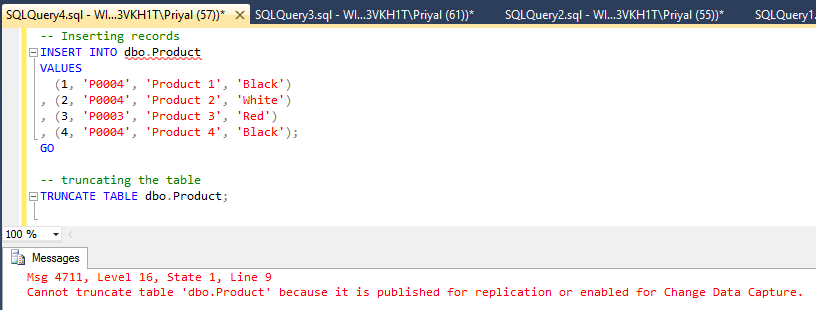
TRUNCATE TABLE dbo.Product;


As you see, truncation is not possible with this table. The error message clearly says that truncate operation is not allowed with CDC enabled tables.

For the question I was asked, the answer I gave should be corrected. The answer should be "truncate operation is not possible with CDC enabled tables".

Wednesday, June 24, 2015

SQL Server Integration Services (SSIS) Feature Pack for Azure is released

Microsoft has released SSIS Feature pack for Azure that allows us to connect with Azure, transfer data between azure and on-premises data sources, and most importantly process data using HDInsight. It release includes following components;

Connection Managers

  • Azure Storage Account Connection Manager 
  • Azure Subscription Connection Manager

Tasks

  • Azure Blob Upload Task 
  • Azure Blob Download Task
  • Azure HDInsight Hive Task
  • Azure HDInsight Pig Task
  • Azure HDInsight Create Cluster Task
  • Azure HDInsight Delete Cluster Task

Data Flow Components

  • Azure Blob Source
  • Azure Blob Destination

Azure Blob Enumerator 

  • for Foreach Loop Container

Download the feature pack for SQL Server 2012 from here: https://www.microsoft.com/en-us/download/details.aspx?id=47367
Download the feature pack for SQL Server 2014 from here: https://www.microsoft.com/en-us/download/details.aspx?id=47366
Once it is installed, items should be appeared as below images;

Control Flow Items:


Data Flow Items: