Showing posts with label Azure Blob Storage. Show all posts

Friday, November 18, 2016

Microsoft SQL Server Backup to Windows Azure Tool

Earlier I made a post on SQL Server Backup to URL: SQL Server Backup to URL - Now easier than before that explains how to take a backup of SQL Server 2016 database using new Management Studio. However, backup to Azure was not something new with SQL Server 2016, it was started with SQL Server 2012 (without GUI support) and improved with GUI support with SQL Server 2014. Read this post for more information on it;

There is another way of backing up SQL Server databases to Azure which is based on a tool called Microsoft SQL Server Backup to Windows Azure. Good thing with this tool is, it is not limited to a specific version of SQL Server, it can be used with any version of SQL Server. Note that it is not a new tool, it is a quite old tool but the latest version is published in June 2016.

Let's see how we can use this tool for backing up databases and restoring from it;

First thing you need to do is, download and install this. You can download this either from:
If you do not need other related tool for SQL Server, use the second URL for downloading the tool. Once downloaded, you can see the installed tool as Microsoft SQL Server Backup to Windows Azure Tool Configuration, start it. This is what you see with its first screen;


This screen allows you to add Rule. Click on Add and continue. The rule is all about, which location this service needs to monitor and what files it should consider. Specify your backup location and file name pattern. Usually, pattern name is *.bak.


Click on Next to continue. Then you need to specify the storage. Make sure the storage you have created is Classis and it as a Blob Container for holding backups. Set the Storage Name, Access Key and Container.


Once you clicked Next, you can enable Encryption and Compression and click Finish button. You should see the rule you added, and it allows you to add more rules as well as modify existing rules.


Let's see this works with backing up operations. First let's backup WideWorldImporters database to a different folder and see the size of it. Make sure you have enabled Compression.


The size of the compressed backup is 165 MB:


Let's take the same to the folder which is configured with the tool. Do NOT enable compression. Note that it will take time more that the time took with previous step as it need to transfer data to Azure.


Check the folder after backup operation is completed. You will see a small file which is NOT your backup of the database. It is called as a stub file that contains some metadata which can be used for restore operation.


If you check the Azure Storage now, you will see two files have been created and placed. One is the same stub file and the second is the blob for the database backup. Since you have the same stub file in the Azure Storage, you can take a copy of it during the restoration operation if you have lost the local file.


If you open the Stub file using a Text Editor, you should see similar content;


If you need to restore the database, you can refer the stub file as the backup through standard restoration window and SQL Server will access the backup from Azure Storage for getting the backup.

As you see, this tool is very useful, specifically when you have multiple versions of SQL Servers. Best thing is, you do not need to write specific codes for transferring files from local environment to Azure as it is automatically done by the tool whenever a backup is placed.

As you see, the size of the backup file after getting it compressed by the tool is 130 MB which is lesser than the SQL Server compressed backup. Since it supports encryption as well, in a way it is better than SQL Server Backup to URL.


Friday, May 13, 2016

SQL Server On-Premise Database files maintained in Azure

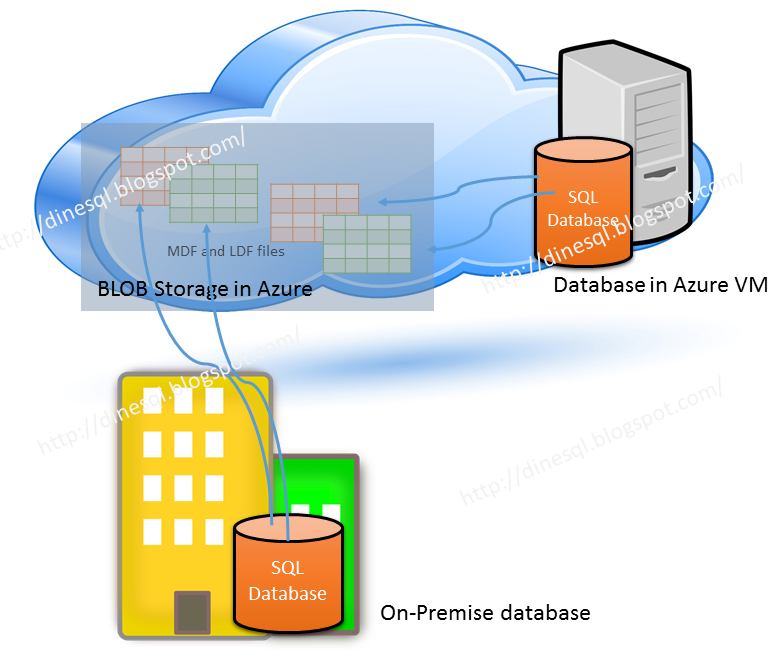
This is not about databases completely maintained in cloud, this is about databases created and maintain on-premises but data and log files are maintained in Microsoft Cloud: Azure.


Microsoft Windows Azure allows us to store database files store in Azure storage while maintaining the database in an on-premise SQL Server instance. This offers many benefits, not only performance and maintenance wise, cost-wise as well. This facility was introduced with SQL Server 2014 and it has been enhanced with SQL Server 2016. Except some restrictions, we can simply work with the database as if it is fully maintained in the server though files are in Azure storage.

What sort of benefits we get from this? 
Main thing is, support on disaster recovery. If something happen to the server or VM hosted in Azure, we do not need to worry because there will be no harm to data files, and we can set up a new database in a new server connecting to files in Azure storage. Another is, more security with TDE. We can enable TDE for the database while keeping all keys in local master database. This allows us to encrypt data in data files and do not need to worry even someone has stolen credentials related to the storage.

In addition to that, it gives some benefits on the cost as we do not need to maintain infrastructure specifically on storage. Not only that, a new feature called Snapshot backup is available with this, which allows us to take instantaneous backups or restore based on files.

How to set up the environment?
Main requirement for this is, an Azure Storage Account. You need a classic storage for this. Once the storage is created, then you need to create a Policy on the Storage Container and Shared Access Signature (SAS) key. After that, you need to create a Credential using SAS in local instance. Then only you can create the database, placing files in the Azure Storage. Let's do all step by step.

Creating Policy and Shared Access Signature in Azure Storage
This has to be done with PowerShell. For that we need Azure PowerShell that provides cmdlets for managing Azure. Open Windows PowerShell ISE and type following. It will install Azure Resource Manager modules.

Install-Module AzureRM

You will be promoted with various windows based on components you have already installed.


And finally you should see a screen like this;


Next we need to install Azure Service Management module. For that, type the following and continue just like previous step.

Install-Module Azure


Let's login to Azure account manager for continuing.

You should get the login dialog box. Provide userid and password to continue.


Type the following cmdlet for getting Azure Subscription information and then open a window for Scripting.


Get-AzureRmSubscription

And place the following code into the Script Window. I have taken this code from Lesson 1: Create a stored access policy and a shared access signature on an Azure container and modified as I want. If you need the entire code, please refer the link. Note that I have already created a Classic Storage called dbfilesclassicstorage and a Container called dbfilescontainer. This script uses the storage and container if exist, else it creates them.

<# 
This script uses the Azure Resource model and creates a new ARM storage account.
Modify this script to use an existing ARM or classic storage account 
using the instructions in comments within this script
#>
# Define global variables for the script
$prefixName = 'dbfiles'  # used as the prefix for the name for various objects
$subscriptionName='Visual Studio Ultimate with MSDN'   # the name  of subscription name you will use
$locationName = 'East Asia'  # the data center region you will use
$storageAccountName= $prefixName + 'classicstorage'  # the storage account name you will create or use
$containerName= $prefixName + 'container'  # the storage container name to which you will attach the SAS policy with its SAS token
$policyName = $prefixName + 'policy' # the name of the SAS policy


<#
Using the Classic deployment model
Use the following four lines to use an existing classic storage account
#>
#Classic storage account name
Add-AzureAccount
Select-AzureSubscription -SubscriptionName $subscriptionName #provide an existing classic storage account
$accountKeys = Get-AzureStorageKey -StorageAccountName $storageAccountName
$storageContext = New-AzureStorageContext -StorageAccountName $storageAccountName -StorageAccountKey $accountKeys.Primary

# The remainder of this script works with either the ARM or classic sections of code above

# Creates a new container in blob storage
$container = New-AzureStorageContainer -Context $storageContext -Name $containerName
$cbc = $container.CloudBlobContainer

# Sets up a Stored Access Policy and a Shared Access Signature for the new container
$permissions = $cbc.GetPermissions();
$policyName = $policyName
$policy = new-object 'Microsoft.WindowsAzure.Storage.Blob.SharedAccessBlobPolicy'
$policy.SharedAccessStartTime = $(Get-Date).ToUniversalTime().AddMinutes(-5)
$policy.SharedAccessExpiryTime = $(Get-Date).ToUniversalTime().AddYears(10)
$policy.Permissions = "Read,Write,List,Delete"
$permissions.SharedAccessPolicies.Add($policyName, $policy)
$cbc.SetPermissions($permissions);

# Gets the Shared Access Signature for the policy
$policy = new-object 'Microsoft.WindowsAzure.Storage.Blob.SharedAccessBlobPolicy'
$sas = $cbc.GetSharedAccessSignature($policy, $policyName)
Write-Host 'Shared Access Signature= '$($sas.Substring(1))''

# Outputs the Transact SQL to the clipboard and to the screen to create the credential using the Shared Access Signature
Write-Host 'Credential T-SQL'
$tSql = "CREATE CREDENTIAL [{0}] WITH IDENTITY='Shared Access Signature', SECRET='{1}'" -f $cbc.Uri,$sas.Substring(1) 
$tSql | clip
Write-Host $tSql


This script outputs the CREATE CREDENTIAL TQL statement we need. Get it copied and use it for creating the Credential in local SQL Server instance.


Creating Credentials in SQL Server
We have done all required from Azure end. Now we need to create a Credential for accessing the storage using the key created. Open the Management Studio and place the copied code from PowerShell, and run it.


Let's create the database now
Now we can create the database. Make sure you use the Azure storage path for placing the files.

CREATE DATABASE Sales 
ON
( NAME = Sales_Data,
    FILENAME = 'https://dbfilesclassicstorage.blob.core.windows.net/dbfilescontainer/SalesData.mdf' )
 LOG ON
( NAME = Sales_Log,
    FILENAME =  'https://dbfilesclassicstorage.blob.core.windows.net/dbfilescontainer/SalesLog.ldf');


Once the database is created, you should see files in your storage like below;


Everything is done. Now the database is maintained locally and files are managed by Azure. For testing purposes, let's create a table and see;


Read more on this with following links;
SQL Server Data Files in Microsoft Azure
How to install and configure Azure PowerShell

Wednesday, May 11, 2016

A nonrecoverable I/O error occurred on file Backup to URL received an exception

My previous post discussed SQL Server Backup to URL, this is an error related to it.

​A nonrecoverable I/O error occurred on file "https://dinesqlclassicstorage.blob.core.windows.net/classisstroagecontainer/Sales_20160512.bak:" Backup to URL received an exception from the remote endpoint. Exception Message: The remote server returned an error: (404) Not Found..
Msg 3013, Level 16, State 1, Line 1
BACKUP DATABASE is terminating abnormally.


As usual, did a search but did not find a good solution but figured out a possible reason for this. The reason could be, using a Azure Classic Storage. If we try to use the newest storage, this error does not occur. However, I cannot exactly say that this is the only reason for this error. There can be many other reasons but try with new storage and see if you experience the same.

Tuesday, May 10, 2016

SQL Server Backup to URL

Although this was introduced with SQL Server 2012, as per my experience, the usage of it is very low because it is unknown to many or do not use this facility to have a good backup strategy. When maintaining an important database, an implementation of a backup strategy is a must and it should be based on RPO (Recovery Point Objective) and RTO (Recovery Time Objective).

Backup strategy is a part of Disaster Recovery solution. If you worry about the space for holding the backup, protecting backups from disasters, and securing your backups, one of the best options that can be used is Backup to URL.

Setting it up is very simple. You need to make sure that you or your company has an account with Azure and you have a storage created. Make sure a container is created in your storage for holding backups.

First, you need to create a Credential in your SQL Server instance for connecting with your Azure Storage. You can either use TSQL or GUI given under Security section.


Once the credential is created, it can be used for backing up your database to Azure Storage. Again you can use either TSQL or GUI.

BACKUP DATABASE Sales
TO URL = 'https://dinesqlstorage.blob.core.windows.net/sqlbackups/Sales_20160512.bak' 
      WITH CREDENTIAL = 'AzureCredential' 
     ,COMPRESSION
     ,STATS = 5;​


Once backed up, if you check your storage, you should see the file;


Note that most of the options that are available with general backup statement are available with backup to URL too. However some of the significant differences are;
  • Appending to an existing backup file is not possible (INT | NOINT is ignored)
  • MIRROR TO option is not supported
  • Generally backup device name is allowed with 259 characters. This option needs 36 characters for azure URL and leaving 223 characters to specify name of the account, container and backup name.

Thursday, April 21, 2016

SQL Server 2016 - Manipulating data in Azure Storage using PolyBase

When PolyBase is opened with SQL Server editions other than APS or PDW, I tested it with SQL Server 2016 CTP 2.1. It had some issues but was able to get it worked with some workaround. Thought to do the same with RC3 since there are many enhancements, and it works fine now. If you are interested in Polybase, have a look on the post I have written in June 2015; SQL Server 2016 features: Polybase: SQL Server connector to Hadoop.

What is PolyBase? It is a feature that is available with SQL Server 2016. It facilitates us to use TSQL against data stored in Hadoop or Azure Blob Storage, allowing us to combine structured data with semi-structured data. Data warehousing benefits a lot from this as it reduces the time spending on ETLing and supports real-time analysis. Other than that it can be used with OLTP databases and can be used for archiving data as well.

Currently this feature is available with SQL Server 2016 RC3, I did not come across Edition Comparison related to 2016, hence no idea which Edition will support with final release. Note that there are few prerequisites like .Net framework 4.5 or later, Oracle Java SE runtime. Make sure you have installed all required before installing SQL Server and enabling Polybase. You can read a post I wrote on installation SQL Server RC3: Installing SQL Server 2016 RC1 - Sharing issues.

Generally, we should install PolyBase feature as Standard-alone Polybase. If you want to make a collection of SQL Server instances as a PolyBase Scale-Out Group, then select PolyBase Scale-Out Group during the installation.

PolyBase support two Hadoop providers: Hortonwork’s Data Platform (HDP) and Cloudera’s CDH either on Linux or Windows. In addition to that it can connect with Azure Blob Storage too.

Let's start with a simple one. I have uploaded a file to my Azure Storage. This file holds small number of CDR records and let's see how we can read these records using TSQL.


In order to access this file, we need to make sure PolyBase is configured properly. Make sure two new services: SQL Server PolyBase Data Movement and SQL Server PolyBase Engine are running. In addition to that, make sure that it is enabled and connectivity is set as below.


For understanding the value that needs to be set with Hadoop Connectivity, read this.

Let's create a database and configure Data Source. Note that, we need to create a Database Credential first for using it with the Data Source.

CREATE DATABASE Telco;
GO

USE Telco;
GO

-- Create a master key to encrypt credential secret.
CREATE MASTER KEY ENCRYPTION BY PASSWORD = 'Pa$$w0rd';

-- Create a database scoped credential (Azure Storage).
-- Enter your azure storage primary key as the secret.
CREATE DATABASE SCOPED CREDENTIAL AzureStorageCredential WITH 
        IDENTITY = 'AzureStorageUser'
  , Secret = 'primary key';

-- create the external data source
CREATE EXTERNAL DATA SOURCE DinesqlStorage
WITH
(
 TYPE = HADOOP,
 LOCATION = 'wasbs://cdrcontainer@dinesqlstorage.blob.core.windows.net/'
 , CREDENTIAL = AzureStorageCredential
);


Next step is creating a File Format for the file we gonna read. PolyBase supports Delimited Text, Hive RCFile, Hive ORC, and Parquet. Let's create the File Format for our file.

-- Create an external file format (delimited text file).
CREATE EXTERNAL FILE FORMAT CDRFileFormat WITH (
        FORMAT_TYPE = DELIMITEDTEXT, 
        FORMAT_OPTIONS (FIELD_TERMINATOR =';', 
                USE_TYPE_DEFAULT = False)
);


Last step is creating an External Table matching with the file uploaded combining the File Format. Read more on it with CREATE EXTERNAL TABLE. Here is the code I used.

-- create the table using file format created
-- and for the file uploaded
CREATE EXTERNAL TABLE CDRData
(
 MSIDN nvarchar(100)
 , IMSI nvarchar(100)
 , IMEI nvarchar(100)
 , [Plan] nvarchar(10)
 , CALL_TYPE nvarchar(20)
 , CORRESP_TYPE nvarchar(10)
 , CORRESP_ISDN nvarchar(100)
 , Duration int
 , [Time] nvarchar(20)
 , [Date] nvarchar(20)
 )
WITH
(
 LOCATION = '/cdrfiles'
 , DATA_SOURCE = DinesqlStorage
 , FILE_FORMAT = CDRFileFormat
);

Now I can simply query data in my Azure Storage using the table I created. Not only that I can join this dataset with my other tables and do more analysis. I will add more complex examples with next set of posts.