Showing posts with label Power Query. Show all posts

Tuesday, September 22, 2015

Loading Power Query data to Power Pivot: Power Query Default Query Load Setting

This concern can be seen everywhere, why my Power Query data sometime appears in Power Pivot but sometime does not appear in Power Pivot? This is not a bug or an issue, it is all about Default Query Load Settings. When data is loaded using Power Query, the placement of the loaded data is decided by Power Query using Default Query Load Settings. This has mainly two settings;
  • Use standard load settings
  • Specify custom default load settings
    • Load to worksheet
    • Load to Data Model

By default, Use standard load settings is selected and its behavior gets changes based on the way you load data. It loads data to worksheet if only a single table is selected. It loads data to data model when multiple tables are selected or loaded data set is not fit enough to worksheet (row limitation). If the setting is changed to Specify custom default load settings, either one of the options (Load to worksheet or Load to Data Model) can be set or both can be selected.

This is how it works;

With the Use standard load settings selected, when a single table is selected from the data source;


and if it is fit enough for the sheet, it will be loaded to worksheet, not to model.


When a table is selected with Select multiple items checked;


data is loaded to the model.


The same behavior for other data sources too;


If Specify custom default load settings is set, and both Load to worksheet and Load to Data Model are checked;


data will be loaded to both worksheet and model.
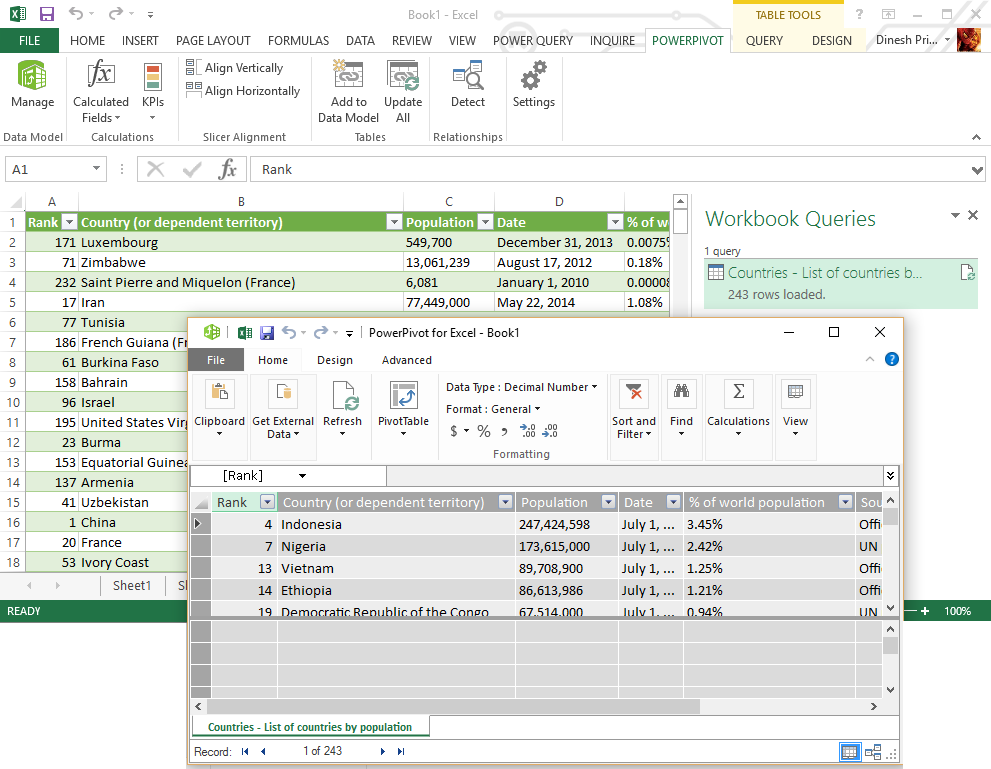

In addition to that, placement can be decided with Load button in Power Query Loading windows too;


Note that this new configuration was opened with the latest update of Power Query. It can be downloaded from: http://www.microsoft.com/en-us/download/details.aspx?id=39379&WT.mc_id=blog_PBI_General_DI

And you can read more on this update at: http://blogs.msdn.com/b/powerbi/archive/2014/05/06/new-updates-for-power-query.aspx

Thursday, June 12, 2014

Connecting with Windows Azure SQL Server database via Power Pivot

While trying to get some records from a database configured in a Windows Azure machine (NOT SQL AZURE), I noticed that the connection can be made using Power Query but Power Pivot. Power Query has an option for connecting with Windows Azure Database using “From Windows Azure SQL Database” as shown in below images;

image

image

However, there is no such option with Power Pivot. If you try to connect using “From SQL Server”, you will get an error as below;

image

image

Unable to retrieve list of databases. Reason: Failed to connect to the server. Reason: Login timeout expired
A network-related or instance-specific error has occurred while establishing a connection to SQL Server. Server is not found or not accessible. Check if instance name is correct and if SQL Server is configured to allow remote connections. For more information see SQL Server Books Online.
Named Pipes Provider: Could not open a connection to SQL Server [53].

The error indicates that Excel tries to establish the connecting using Named Pipes protocol which is not valid with this context. Though it can be considered as the reason for this error, there is no option for changing the protocol as TCP/IP. This makes establishing the connection impossible. However, found a workaround for connecting with Windows Azure SQL Database, not using the default Provider which is “SQL Server Native Client 11.0” but using “Microsoft OLEDB Provider for SQL Server”. All we have to do is, open the Advanced window clicking “Advanced” button and change the Provider as Microsoft OLEDB Provider for SQL Server.

image

I still cannot figure out the exact reason for this and how to connect using SQL Server Native Client. If you have done it, please share.

Related post: http://dinesql.blogspot.com/2014/06/connecting-with-sql-server-virtual.html

Monday, May 19, 2014

Power BI – Power Query Update

Couple of new features have been added to Power Query and they are available with the latest version of Power Query: 2.11.3625.

Here is the download link for Power Query: http://www.microsoft.com/en-us/download/details.aspx?id=39379

New features added;

  • New Data Sources
  • Improvements to Query Load Settings
  • Improvements to Query Refresh behaviors in Excel
  • New Transformations available in the Query Editor
  • Other Usability Improvements

This blog post describes updates available with new version: http://blogs.msdn.com/b/powerbi/archive/2014/05/06/new-updates-for-power-query.aspx