Showing posts with label Database Administration. Show all posts

Wednesday, January 4, 2017

SQL Server Job History is missing

If you are 100% sure that the job configured with SQL Server Agent has been executed successfully but you do not see the execution record when the Job History is opened, what could be the reason?

This is something I noticed yesterday with one of companies I consult. The client has many jobs configured with SQL Server Agent and all work fine without any issue. When the job history of the job is viewed using View History context menu, for some jobs, it shows the history but not for all. If the jobs have been successfully executed, it means that execution records should be exist in the msdb database as it is the database that stores all these information. So, we immediately checked the database;

USE msdb;
GO

select * from sysjobhistory;

It returned only 1000 records, means it maintains only thousand records. This is based on a setting of SQL Server Agent which is called Current job history log size (in rows). When it was checked, the setting was something like below;


This setting deletes all old records to make sure that it maintains only 1000 records. That is the reason we see the history for some records, not for all. What we saw from the above query is, details of jobs executed recently.

Best is, select Remove agent history checkbox and set to 4 weeks or more without using Limit size of job history log. This makes sure that we see the history for last one month. However, if the msdb database is getting larger, then you need to configure a lower value.

Sunday, December 25, 2016

Automate adding common objects to new databases when they are created - SQL Server Brain Basher of the Week #062

Thought to share a specific conversation of one of the interviews did last month on a DBA role. The interview was done over the Skype call as the Interviewee was at a different place. We were having a conversation on past experiences of Interviewee and I learnt that he has worked for a company that maintains many databases for many clients and of course, he was explaining the work he had to do.

Here is the Brain Basher of the week based on the conversation I had. What is the best way of adding common objects to new databases when they are created?

Let me explain this by adding the conversation we had on it (Note that I have obtained permissions from the client and Interviewee for adding this small part of the interview to my blog, this is not the exact conversation had, have slightly adjusted it for writing purposes). let's call Interviewee as Jack.

Me: Okay Jack, since you have worked with a company that maintain large number of databases for clients, I am sure that you have many common objects like Tables, Stored Procedures in all databases.

Jack: Yes Dinesh. There are set of Tables and Procedures that we need to create when a new database is created to a new client.

Me: How do you do it? Are you adding them manually? Or have you done some automation on it?

Jack: I had automated it, yes, up to some extent. I have a script for creating a database and that script not only had the database creation part, I had creation code of all other required objects. So, all I had to do is, just run this script with few modification for setting up a new database.

Me: Great, do you know any other technique or method to make sure that all required common objects are available in the newly created database without adding them through the script?

Jack: There may be but, since I was comfortable with what I had, I did not look for something else. I had no issue with the ready-made code.

Me: Agree, but what if I need to make sure even I can create a database in your environment with all common objects, without your script? Or assume that one of your colleagues need to create a new database for a new client, and you are absent and he cannot find your script.

Jack: Yes, we experienced it several times and I accept that I did not have a document that explains how to do it :). But it was not a major issue at that time.

Me: Yes, it is always great to maintain a run-book (read more on Run Book: SQL Server Brain Basher of the Week #021 - Documentation). Anyway, we can use some components of the SQL Server for handling that, any idea how to use existing SQL Server components to automate some of those without having a script?

Jack: Like SQL Server Agent, using a job?

Me: How SQL Server starts the database creation when we ask to create one for us?

Jack: I am not sure about the internal operation but it requests the space from the OS based on the way we have configured the files and do some other operations, must be, and complete it.

Me: It actually takes a copy from a template and use it for creating the database. Do you know where is the template store?

Jack: Must be in one of the system folders. Sorry Dinesh, not sure where it is actually located.

Me: No problems. It is actually one of the system databases. It is Model Database.

Jack: Yes, I have heard about it but did not check much on that.

Me: You can actually add all your common objects to the Model Database and keep. Then, when anyone create a database, since it takes a copy of Model Database, the newly created database will automatically contain all required components. So, we do not need to add them manually or via a script.

Jack: Yes, I have missed that part...........

Conversation continued...........

Remember this, Model is the template and it is used by SQL Server to create databases when we ask.


Friday, December 16, 2016

Understanding SQL Server Media Set, Media Family and Backup Set

I am sure that you have been taking backups of SQL Server databases and you know that backups can be taken either to a disk or a Windows Azure Blob Storage service. However, many of us are unaware about some terms used with backup operations, such as Media Set, Media Family and Backup Set. Let's try to understand these with an example.

Media Set
This is the main container that holds backup sets using backup devices. Generally we take a backup of the database without mentioning the name of Media Set, hence the device we used is attached to a media set that has no name. Remember, Media Name is optional There is no harm of not mentioning the name for Media Set but it is always advisable to name it because it helps us to identify the correct backup sets.

Media Family
This refers the device (single non-mirrored device or set of mirrored devices) used for holding the backup in the Media Set. If Media Set has one device, then Media Set contains one Media Family. If Media Set has two devices (say that you take a backup to two disk files), then it contains two Media Families. Each Media Family in the Media Set is assigned with a number called Media Sequence Number.

Backup Set
Backup Set is the content of the database backup we take to the Media Set. If you take a backup of your Sales Database, then it is the Backup Set in the Media Set. If Media Set contains one Media Family (means one device), content is written to it. If it contains two Media Families (or more), content is distributed among families (devices), working similar to stripe set.

Media Header
Each and every Media Family in the Media Set has a header that holds information such as Name, Unique identification, Sequence number, etc. This header remains until the Media is reformatted.

Let's take a backup of a database and see how this works. I have a database called Marketing and I am taking a backup of my database to two files. Note that I have mentioned the Media Name which is the Media Set Name. As mentioned above, it is not a must but it is always better to name it.

Here the TSQL code for backing up;

USE master;
GO

BACKUP DATABASE Marketing 
TO DISK = N'D:\Backup\Marketing\BackupDevice01.bak'
 ,  DISK = N'D:\Backup\Marketing\BackupDevice02.bak' 
WITH NOFORMAT, NOINIT,  MEDIANAME = N'MarketingMediaSet01'
GO

Here is the way of doing the same with GUI.


Just like the way described above, you can click on the OK button and take the backup of one of your databases. Since I have used two files, my backup is distributed (approximately 50% per each) among two files. Let's query some tables in the msdb database to see how Media Set, Media Families and Backup Sets have been created.

USE msdb;
GO

SELECT * FROM dbo.backupmediaset WHERE name = 'MarketingMediaSet01';
SELECT * FROM dbo.backupmediafamily WHERE media_set_id = 35;
SELECT * FROM dbo.backupset WHERE media_set_id = 35;


If I did not mentioned the name for Media Set, I will see blank for name of the Media Set. As you see, Media Set named MarketingMediaSet01 is created and two Media Families have been created for each device I used. I took only one backup, hence there is only one Backup Set for this media set.

This is what I used for explaining the same in my workshops;


If I take another backup of Marketing Database again to the same without overwriting (WITH NOINIT), I will see an additional Backup Set under same Media Set.


I can illustrate the Media Set now as below;


Let's take one more backup to the same Media Set. This time, I am going to take a backup of different database, which is Adventure Works.

USE master;
GO

BACKUP DATABASE AdventureWorks2014 
TO DISK = N'D:\Backup\Marketing\BackupDevice01.bak'
 ,  DISK = N'D:\Backup\Marketing\BackupDevice02.bak' 
WITH NOFORMAT, NOINIT,  MEDIANAME = N'MarketingMediaSet01'
GO

I can take it without any issue and I can see another Backup Set added to my Media Set.


Here is the illustration for it now;


You may ask that it is possible to take a backup of another database (or same) without mentioning the Media Name. Yes, it is possible, you can take a backup to same devices without adding the Media Set name but it will be added to the same Media Set.

However, if you try to use the same devices with a new Media Name, you will get the following error because it is not possible to attach these devices to another Media Set.

Msg 4037, Level 16, State 1, Line 1
The user-specified MEDIANAME "NewMediaSet" does not match the MEDIANAME 
"MarketingMediaSet01" of the device "D:\Backup\Marketing\BackupDevice01.bak".
Msg 3013, Level 16, State 1, Line 1
BACKUP DATABASE is terminating abnormally.


Thursday, December 15, 2016

Moving SQL Server System Databases

I wrote a post on the same, specifically on User-Defined databases: Moving User-Defined SQL Server Databases files - within the instance. However, the procedure for moving system databases is bit different from that, hence here is the way of doing it.

Let's see how we can move system databases such as msdb, model and tempdb. If you have read the above-mentioned post, you know that we need to make our database offline in order to move files. But for these system database, we cannot make the databases offline, we need to stop the SQL Server Service.

Here are the steps. Let's see how we can move tempdb files as it is same for both model and msdb.

1. Alter the location of its files with new the new location.

USE master;
 GO

 ALTER DATABASE TempDB MODIFY FILE
 (NAME = 'tempdev', FILENAME = 'E:\New Location\tempdb.mdf')
 GO

 ALTER DATABASE TempDB MODIFY FILE
 (NAME = 'templog', FILENAME = 'E:\New Location\templog.ldf') 
GO

2. Make sure you have done the above for all files. Once done, stop the SQL Server Service.

3. Now you can move files as you need. Move mdf and ldf files to the new location.

4. Restart the service. You should see that it starts without any issue.

If you need to move the master database, process is not same. You cannot alter the master database, hence you need to do a small change for startup parameters.

1. Get the properties of SQL Server Service using SQL Server Configuration Manager.

2. Change -d parameter, setting the mdf  file to the new location and -l parameter, setting the ldf file to the new location.


3. Stop the SQL Server Service.

4. Move files to the new location.

5. Restart the service. Now your master database files in new location and SQL Server must work with them without any issue.

Tuesday, December 13, 2016

Moving User-Defined SQL Server Databases files - within the instance

Sometime we need to move database files created for our databases from existing location to a new location. The reason could be; 1. Not enough space in the existing volume. 2. For performance improvement. Whatever the reason, methods for moving files are different based on the database type, whether it is system or user-defined and the scope, whether it is within the instance or not. Note that this post talks about moving files of a user-defined database within the instance.

What are the steps for doing it. First of all, you need to cancel all transactions that are being run. Then you need to bring the database offline. It can be done using one statement.

USE master;
GO

ALTER DATABASE AdventureWorks SET OFFLINE
WITH ROLLBACK IMMEDIATE;

Once it is done, move files manually and modify the database, changing the file path of its files.

-- You need to execute this for each and every file you need to move
-- Name is logical name, Filename is physical name.
-- If you do not know the logical name
-- execute sp_helpfile against your database.
ALTER DATABASE AdventureWorks MODIFY FILE 
(Name = AWDataFile, Filename = '\AWDataFile.mdf');
ALTER DATABASE AdventureWorks MODIFY FILE 
(Name = AWLogFile, Filename = '\AWLogFile.ldf');

Then all you have to do is, bring the database online.

ALTER DATABASE AdventureWorks SET ONLINE;

You may need to take a copy of these file without taking the database offline and then attach them to another instance. As you know, database files cannot be copied while they are being used but you can use something like HoboCopy for taking the copy. Read more at http://dinesql.blogspot.com/2015/05/how-to-take-copy-of-database-files.html.

Friday, January 8, 2016

Taking backups of Azure SQL Database and restoring to on-premise server

A database server without a backup strategy is a disaster and if you have no strategy implemented, you invite for troubles. However this traditional approach cannot be implemented with Azure SQL Databases because most of the backup requirements are automatically done. Azure SQL Database offers built-in backup and restore facility that is an automated operation. This automatically provides disaster recovery, recovery of data corruption and eliminates manual backups. These backups are retained for 7 days, 14 days and 35 days for Basic, Standard and Premium tiers respectively and Point-In-Time restoration is available too.

However, when you need a copy of your Azure SQL Database to local environment, how do you do it? You do not get traditional .bak files and it cannot be restored using traditional interface. But this can be achieved using Export functionality given. Here are the steps for getting you Azure SQL Database to on-premise server.

First of all, make sure that you have a classic storage account configured. You cannot export the backup, of course it is bacpac file, to a storage created with the new portal storage blade.

Once the storage is ready, open your database using SQL Databases blade and click on Export.


Then select the classic storage and the container. Name the bacpac file as you want, and click Create.


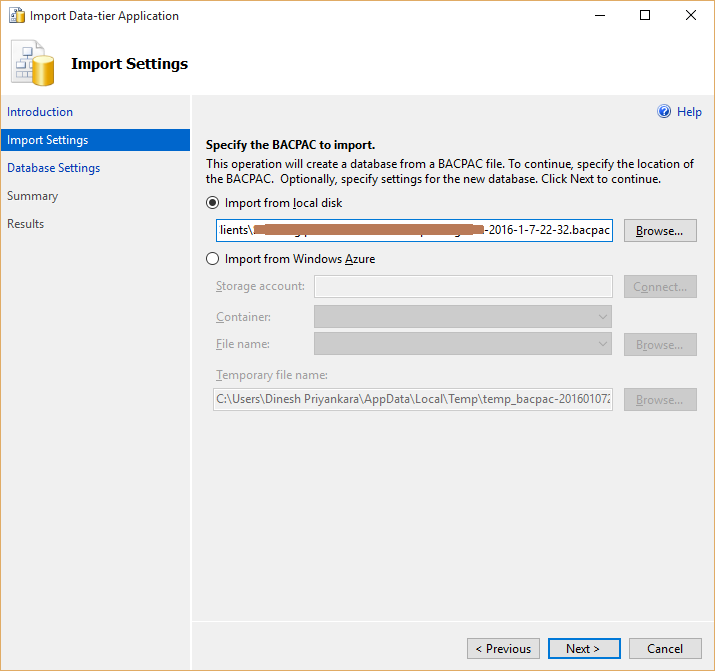
This will create the bacpac file and add to the storage. Then get file into local environment (you can use a third party tool for this too) and access it using Management Studio.


This takes you through the wizard, select the bacpac file saved and continue with the wizard. Note that you can directly refer the storage account if you can connect with it, rather downloading the file manually.


Done, now you have the database in your environment.